

About This Section
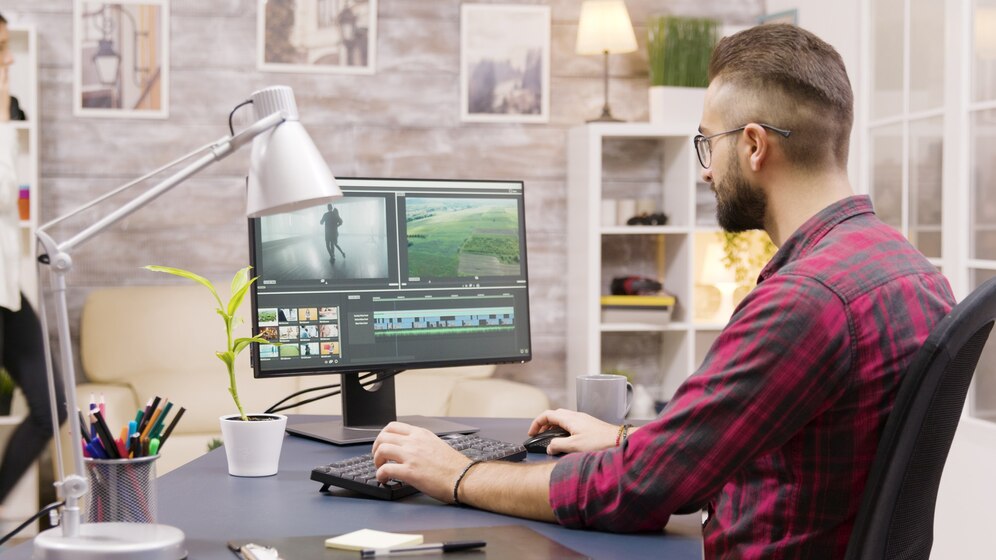
Here are some key video editing notes to help guide your process: 1. Planning and Organization Storyboarding: Plan out your shots or scenes before you start editing. Footage Organization: Label and categorize your clips. Create folders for different assets (audio, video, images) to stay organized. Choose Your Editing Software: Popular choices include Adobe Premiere Pro, Final Cut Pro, DaVinci Resolve, or free software like HitFilm Express or Lightworks. 2. Basic Editing Techniques Cutting and Trimming: Remove unwanted parts, but always ensure that transitions between cuts are smooth and purposeful. Timeline Editing: Place your video clips, audio, and any additional elements (text, images) on the timeline in layers for the best flow. Transitions: Use them sparingly (dissolves, fades, wipes). Too many can feel jarring unless used intentionally. Speed Changes: Speed up or slow down footage to emphasize certain moments or create effects. 3. Audio Editing Syncing Audio: If you're working with external audio (like voiceovers or music), ensure it’s synced properly with your video. Audio Levels: Adjust audio levels to ensure dialogue, background music, and sound effects are balanced. Watch for clipping (distortion) and fix with compression or volume adjustments. Sound Design: Add sound effects to enhance the mood (footsteps, background noise, etc.). 4. Color Grading Color Correction: Fix the overall color tone of your footage (brightness, contrast, saturation). Color Grading: Apply creative color grades to give your video a mood (e.g., a warm, cinematic look or a cold, blue tone). LUTs (Look-Up Tables): Pre-set color grading styles that can speed up the process and create a consistent look. 5. Text and Titles Intro/Outro: Always include professional-looking title cards for your intro and outro if relevant. Lower Thirds: Use these for names or additional information that appears on-screen. Make sure they don’t distract from the video. Animation: Add subtle animations to text to make it dynamic but don’t overdo it. 6. Effects and Visual Enhancements Green Screen (Chroma Key): Remove a green (or blue) background to replace it with something else. Motion Graphics: These can make your video look more dynamic but should support the story. Visual Effects (VFX): Some videos might require CGI or enhanced visual effects. These are often used in action films, music videos, or commercials. 7. Exporting and Finalizing Resolution: Export in the resolution that matches your final platform (e.g., 1080p for YouTube, 4K for professional projects). File Format: Choose an appropriate file format like MP4 (H.264 codec) for most platforms. Bitrate: Higher bitrate means better quality, but it also increases file size. Balance quality with file size depending on the platform. 8. Tips for Efficiency Use Shortcuts: Learn keyboard shortcuts for faster editing. Version Control: Save different versions of your project as you go. It can save time if you need to revert to an earlier edit. Review Your Edit: Always take breaks and come back with fresh eyes to ensure continuity and avoid mistakes. Use Templates: Speed up your editing by using pre-built templates for intros, lower thirds, or transitions. These notes will help you build a strong foundation in video editing and allow you to create polished, professional videos! Let me know if you want more details or tips on any specific area.
© Copyright 2025 All Rights Reserved